Order Processing
Manual Order Sync
Manual order sync lets you push Shopify orders into Odoo ERP on-demand, one at a time or in bulk.
Manual Order Sync
Manual order sync allows you to synchronize orders from your Shopify store to Odoo ERP system on-demand. This is useful when you need to sync specific orders, catch up on historical orders, or when automatic sync is not enabled.
Prerequisites
Before performing manual order sync, ensure you have completed:
1. Odoo Server Configuration
- Odoo server must be connected with valid credentials
- Required modules (sale, stock, account) must be installed and activated
2. Company and Location Setup
- An Odoo company must be selected
- Shopify locations must be mapped to Odoo warehouses
3. Product Synchronization
- Products referenced in orders should be synced between Shopify and Odoo
- If a product is not yet synced, Synco will create it on-the-fly when the order syncs
4. Order Rules Configuration
- Configure your order rules (payment status, fulfillment status, order source, creation type) before syncing
- Manual sync respects all configured order rules
How to Perform Manual Order Sync
Step 1: Navigate to Order Sync
- Navigate to the Orders section in the Synco app
- Click on the Order Sync tab to see the order table
Step 2: Select Orders to Sync
- You'll see a list of all Shopify orders with their sync status
- Filter orders using the available tabs: All, Synced, Not Synced, Eligible, Sale Order, or Invoice
- Use search to find specific orders by email
- Filter by sync status or ID type (Odoo ID / Invoice ID)
Step 3: Execute Sync and Monitor Status
- Click the "Sync" button next to the order you want to sync
- The sync status will update in real-time:
- In Progress: Sync is currently processing (spinning loader)
- Synced: Sync completed successfully — shows Odoo ID (clickable to open in Odoo)
- Not Synced: Order hasn't been synced yet
- Failed: Sync encountered an error
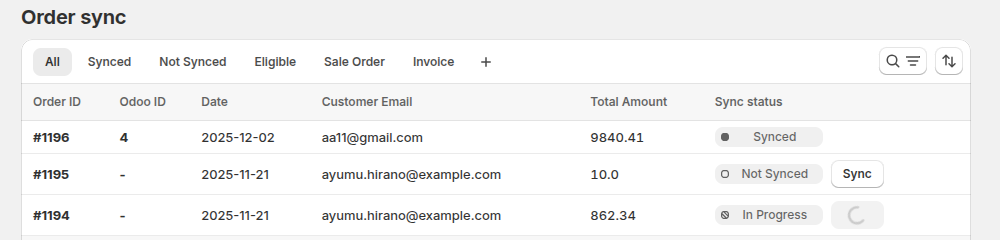
Order Sync Table
The order sync table displays:
| Column | Description |
|---|---|
| Order Name | Shopify order number |
| Odoo ID | Linked Odoo record ID (clickable — opens in Odoo) |
| Date | Order creation date |
| Customer Email | Customer's email address |
| Total Amount | Order total |
| Sync Status | Current sync state (Synced / Not Synced / In Progress) |
| Job Status | Background job status |
| Actions | Sync button |
Sorting Options
- Sort by Order, Customer, Date, or Total (ascending/descending)
Eligibility Indicators
- Orders are checked against your configured sync rules (payment status, fulfillment status, source, date range)
- Ineligible orders show a tooltip explaining why they don't match the rules
- Only eligible orders can be synced
What Gets Synced
When an order is synced to Odoo, the following data is included:
- Order Information: Order number, date, status, and totals
- Customer Details: Customer name, email, and shipping/billing addresses (customer is created in Odoo if not already linked)
- Product Line Items: Products, quantities, prices, and discounts
- Tax Information: Tax calculations and tax line items (Odoo-version-aware)
- Discount Information: Line-level and order-level discounts from Shopify's discount allocations
- Payment Information: Payment method and gateway details
- Shipping Information: Shipping method and delivery details
- Order Attributes: Note attributes and order tags (if enabled in settings)
- Order Prefix: Custom prefix applied to Odoo order number (if configured)
How Orders Are Created in Odoo
Manual sync respects your order rules configuration:
- Orders are created as Draft Sale Order, Confirmed Sale Order, Draft Invoice, Confirmed Invoice, or a combination
- Invoices are created based on your invoice settings (All Orders or Paid Orders)
- Payment gateway mapping is applied for payment registration
- Order prefix and Shopify order number settings are applied
- The Odoo order ID is stored in the Shopify order's
custom.odoo_idmetafield
Support
If you encounter issues with manual order sync:
- Email: support@techspawn.com
- Documentation: Check our help center for detailed guides