Auto Order Sync
Auto Order Sync automatically synchronizes orders from your Shopify store to Odoo ERP system using webhooks. Orders are synced in real-time based on your configured rules.
How It Works
When a customer places an order in Shopify:
- The webhook triggers automatically
- Synco checks the order against your configured rules (payment status, fulfillment status, order source, date range)
- If the order matches all conditions, it is enqueued as a background job
- The order is created in Odoo as a Sale Order, Invoice, or both (based on your settings)
- The Odoo order ID is stored in the Shopify order's
custom.odoo_idmetafield - Order updates are also synced via webhooks

Enabling Auto Order Sync
To enable automatic order synchronization:
- Navigate to the Order Settings tab in the Synco app
- Toggle the Auto Order Sync switch to enable
- Configure your order rules and preferences (see below)
- Save your settings
When enabled, Synco registers the order webhooks. Disabling auto sync deregisters these webhooks.
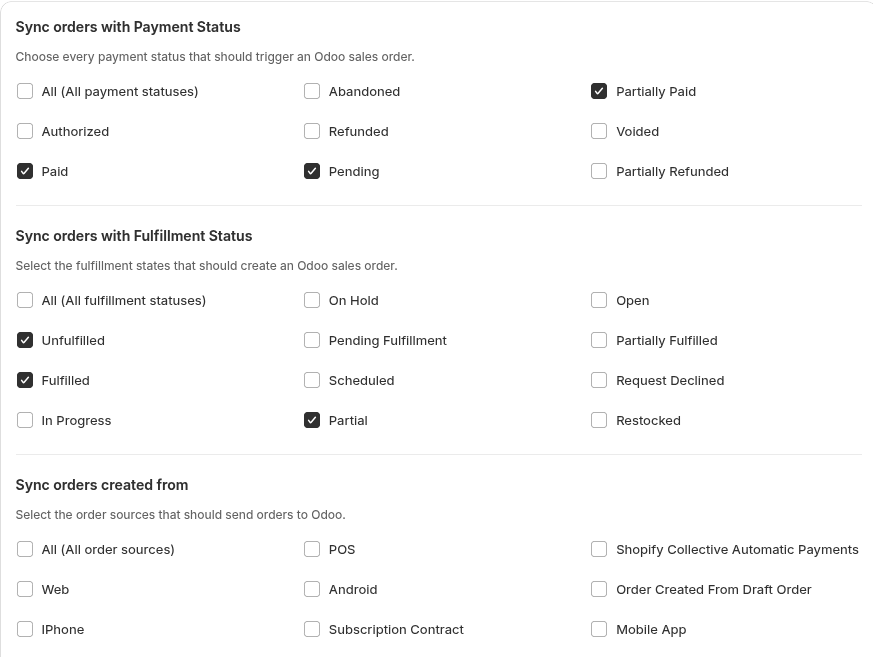
Order Rules
Your order sync behavior is controlled by the rules you configure. These determine:
- Which orders get synced based on payment status
- Which orders get synced based on fulfillment status
- Which orders get synced based on order source (including custom sources)
- How orders are created in Odoo (draft/confirmed sale orders, draft/confirmed invoices, or combinations)
- Additional Shopify fields to include (note attributes, order tags)
- Date range for order synchronization
- Order prefix customization
- Shopify order number synchronization
- Refund order synchronization with stock restoration
For detailed information about configuring each rule, see Order Rules.
Key Features
Payment and Fulfillment Status Filtering
- Select specific payment statuses: All, Paid, Pending, Partially Paid, Authorized, Abandoned, Refunded, Partially Refunded, Voided
- Select specific fulfillment statuses: All, Unfulfilled, Fulfilled, Partial, In Progress, On Hold, Open, Partially Fulfilled, Pending Fulfillment, Request Declined, Restocked, Scheduled
- Orders must match ALL selected conditions to sync
Order Source Filtering
- Filter by order source: Web, POS, iPhone, Android, Mobile App, Draft Order, Subscription Contract, Shopify Collective Automatic Payments
- Add custom order sources as needed
- Use "All" to sync from all sources
Order Creation Options
Sale Order Options:
- Create as Draft Sale Order (only)
- Create as Confirmed Sale Order (only)
Invoice Options (can be selected independently):
- Create as Draft Sale Invoice only (no sale order)
- Create as Confirmed Sale Invoice only (no sale order)
Combined Options:
- Sale Order + Draft Sale Invoice
- Sale Order + Confirmed Sale Invoice
You can create invoice only, draft invoice only, or combine a sale order with an invoice. Choose based on your Odoo workflow.
Invoice & Payment Settings
- Invoice for: All Orders or Paid Orders only
- Sales Journal: Select the Odoo sales journal for invoices
- Income Account Mode: Fixed income account or use Odoo product category accounts
- Income Account: Select the chart account for invoice payments
- Payment Registration: Register payments in a single journal or map each Shopify payment gateway to a specific Odoo bank/cash journal
- Payment Gateway Mapping: Map detected Shopify payment gateways (e.g., "shopify_payments", "manual") to specific Odoo journals
Order Currency
- Shop Default: Use the store's default currency
- Customer Presentment Currency: Use the currency the customer paid in
Customer Handling
- Normal Mode: Searches Odoo for an existing customer by email. Creates a new customer if not found.
- Single Customer Mode: Map all orders (or just guest orders) to a single pre-configured Odoo customer. Useful for anonymous/POS sales.
Additional Options
- Start Syncing Orders From / To: Set a date range — only orders within this range will sync. Orders outside this range are skipped. Changing dates won't affect already synced orders.
- Order Prefix: Add a custom prefix to Odoo order numbers (e.g., "WEB-" → "WEB-0001"). Leave blank for default Odoo numbering. Applies to new records only.
- Shopify Order Number Sync: Use Shopify order numbers as Odoo order numbers for easy cross-referencing
- Refund Order Sync: Automatically create credit notes in Odoo and restore stock for refunded items
- Cancel Sale Order: Cancel the linked Odoo Sales Order when a Shopify order is cancelled (when cancelReason or cancelledAt is set)
- Sync Payment Method to Odoo: Sync the Shopify payment gateway as an Odoo Payment Journal. If no matching journal exists, one is created automatically with the format "Card (Gateway)"
- Include Shopify Fields: Sync Note Attributes and/or Order Tags to Odoo sales orders
Discount Handling
Discounts from Shopify's discountAllocations (both line-level and order-level) are calculated and written to Odoo's "Disc.%" field on each order line. The formula used is: (sum of allocations / originalTotal) * 100.
Tax Handling
Tax handling is Odoo-version-aware, using tax_id for older versions and tax_ids for newer versions. Tax line items from Shopify are mapped to the order.
Order Sync Table
The Order Sync tab shows all Shopify orders with their sync status:
| Column | Description |
|---|---|
| Order ID | Clickable — opens the order in Shopify admin |
| Odoo ID | Linked Odoo record ID (clickable — opens in Odoo). Shows Sale Order ID or Invoice ID |
| Date | Order creation date |
| Customer Email | Customer's email address |
| Total Amount | Order total |
| Sync Status | Badge showing current state with sync/retry actions |
Sync Status States
- Synced: Successfully synced (shows Odoo ID)
- Not Synced: Not yet synced (shows Sync button)
- In Progress: Currently processing
- Delayed: Scheduled for retry (shows "Retrying in X min")
- Failed: Encountered an error (tooltip shows failure reason)
Filters and Views
- Tabs: All, Synced, Not Synced, Eligible, Sale Order, Invoice
- Filters: Sync status, ID Type (Odoo ID / Invoice ID), search by email
- Search: Search across order name, customer email, and Odoo order ID
- Sorting: By Order, Customer, Date, or Total (ascending/descending)
- Custom Views: Create, rename, duplicate, and delete custom filter views
Eligibility Indicators
Orders are validated against your configured sync rules. Ineligible orders show a warning icon with a tooltip explaining why (e.g., "'PENDING' payment status doesn't match sync rules" or "Order outside sync date range").
Bulk Actions
- Select multiple orders using checkboxes
- Use "Sync Selected (N)" to sync all selected orders at once
- "Sync Orders" button at the top syncs all eligible orders (with confirmation dialog)
Auto-polling
When jobs are active (waiting/active/delayed), the page automatically polls every 5 seconds to refresh order statuses in real-time.
Pagination
- 50 orders per page
- Cursor-based navigation with Previous/Next buttons
Support
If you need help with auto order sync:
- Email: support@techspawn.com
- Documentation: Check our help center for detailed guides