Order Rules
Order Rules
Control which Shopify orders sync to Odoo and how they're created. Orders must match ALL selected conditions to sync.
Quick Setup
- Go to Order Settings tab in the Synco app
- Enable the Auto Order Sync toggle
- Configure your rules below
- Save
Rule Groups
1. Payment Status
Choose which payment statuses should sync to Odoo:
- All: Select all at once
- Paid: Fully paid orders
- Pending: Pending payment
- Partially Paid: Partially paid orders
- Authorized: Payment authorized but not captured
- Abandoned: Abandoned checkout orders
- Refunded: Fully refunded orders
- Partially Refunded: Partially refunded orders
- Voided: Voided payment orders
2. Fulfillment Status
Choose which fulfillment statuses should sync:
- All: Select all at once
- Unfulfilled: Not fulfilled yet
- Fulfilled: Completely fulfilled
- Partial: Partially fulfilled
- In Progress: Currently being processed
- On Hold: Fulfillment on hold
- Pending Fulfillment: Awaiting fulfillment
- Scheduled: Scheduled for future fulfillment
- Open: Open orders
- Partially Fulfilled: Partially fulfilled
- Request Declined: Fulfillment request declined
- Restocked: Items have been restocked
3. Order Source (Optional)
Filter orders by where they came from:
- All: All sources
- Web: Online web store
- POS: Point of Sale
- iPhone / Android: Native mobile apps
- Mobile App: Mobile app orders
- Subscription Contract: Subscription orders
- Shopify Collective Automatic Payments: Collective payments
- Order Created From Draft Order: Draft orders
Custom Source: Type a source name and click "Add" to include any custom order source.
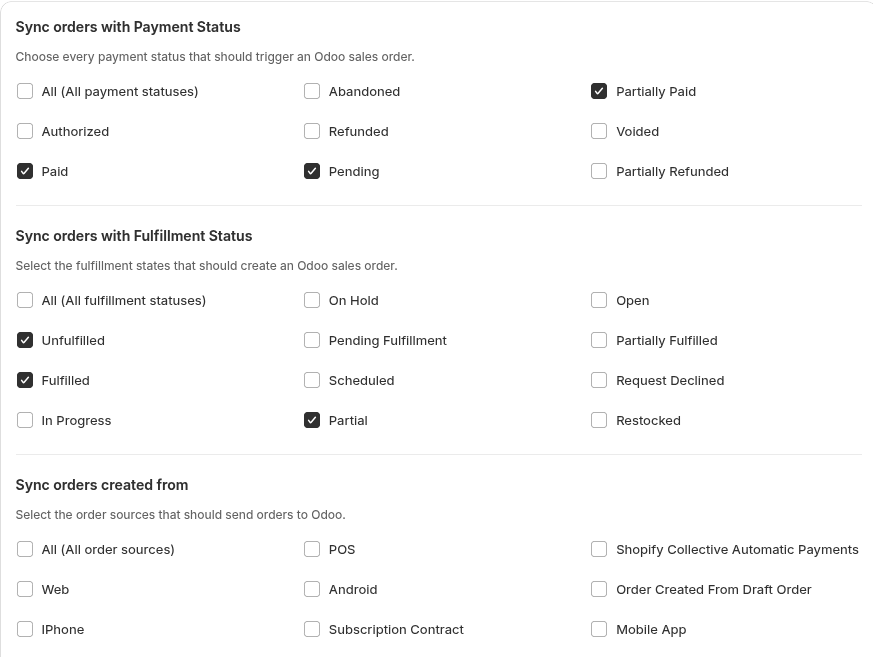
4. Include Shopify Fields
Add extra details to Odoo sales orders:
- Note Attributes: Include order note attributes as a field in the Odoo order
- Order Tags: Include Shopify order tags in the Odoo order
5. Create Orders in Odoo As
Choose what gets created in Odoo when orders sync:
Sale Order Options:
- Draft Sale Order: Creates an unconfirmed sale order (no invoices)
- Sale Order: Creates a confirmed sale order (can add invoices)
Invoice-Only Options:
- Draft Sale Invoice: Creates only a draft invoice (no sale order)
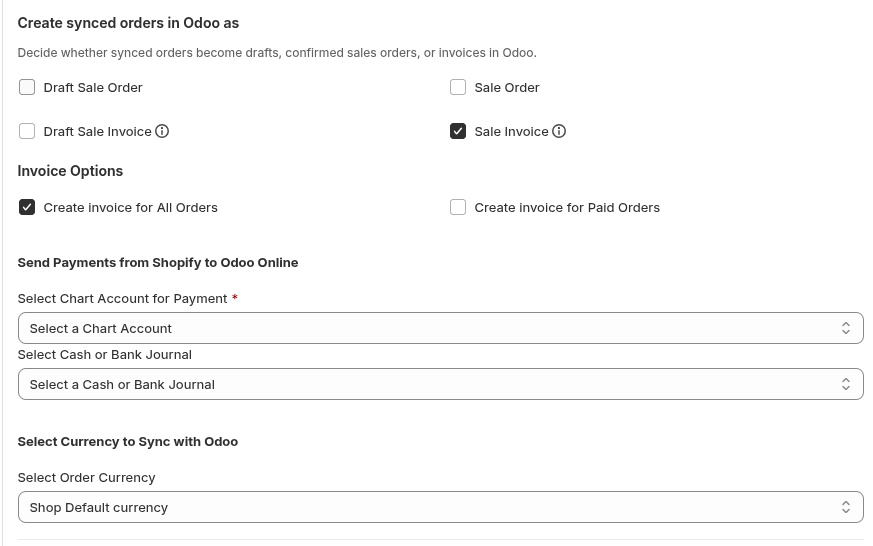
- Sale Invoice: Creates only a confirmed invoice (no sale order)
Combined Options:
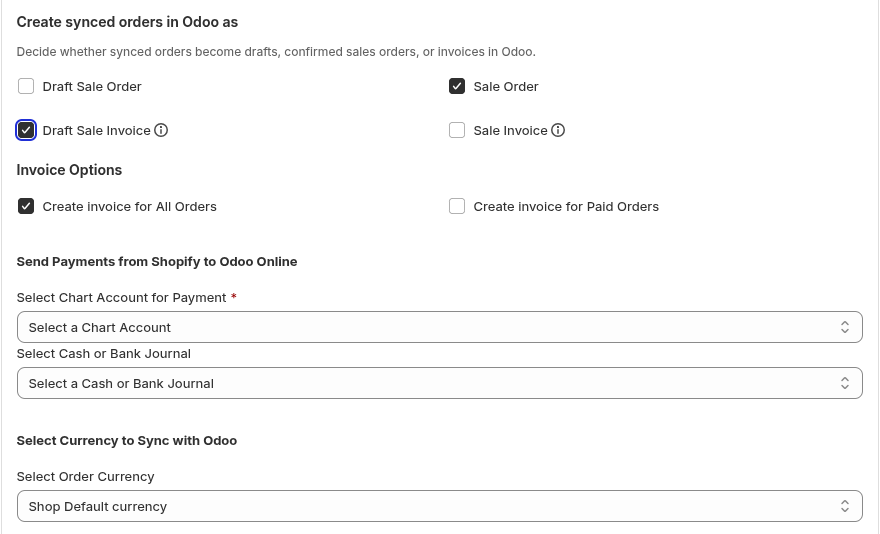
- Sale Order + Draft Invoice: Creates a confirmed sale order and a draft invoice
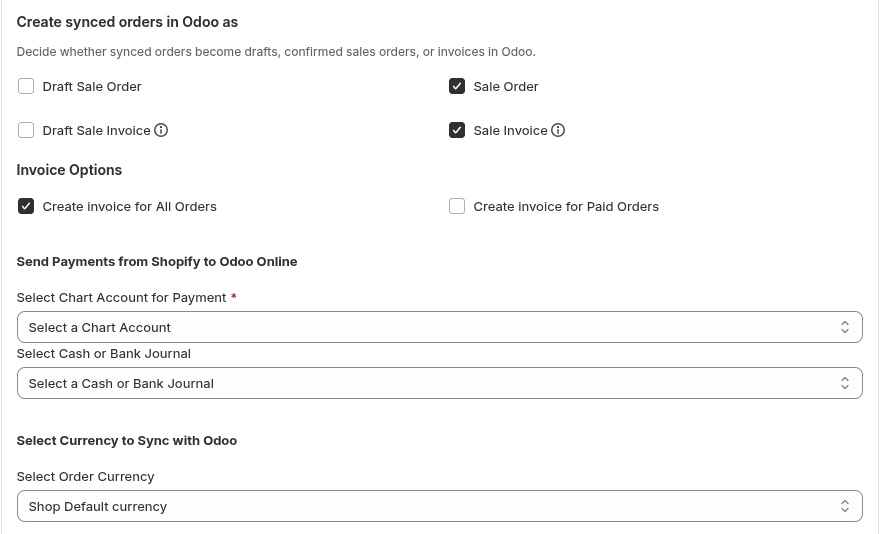
- Sale Order + Sale Invoice: Creates a confirmed sale order and a confirmed invoice
Sale Order Only:

Sale Invoice Only:
Sale Order + Draft Invoice:
Sale Order + Sale Invoice:
Invoice Settings:
- Invoice for: All Orders or Paid Orders only
- Sales Journal: Select the Odoo journal for invoices
- Income Account Mode: Fixed income account or use Odoo product category accounts
- Income Account (Chart Account): Select the account for invoice payments
- Payment Registration: Register in a single journal or map Shopify payment gateways to specific Odoo journals
- Currency: Shop default currency or customer presentment currency
6. Order Sync Date Range
Choose the date range of Shopify orders to sync into Odoo. Orders outside this range are skipped. Changing these dates won't affect already synced orders.
- Sync Orders From: Set the start date for order sync
- Sync Orders To: Set the end date for order sync

7. Order Prefix (Optional)
Add a custom prefix to Odoo order numbers (e.g., "WEB-" → "WEB-0001"). Leave blank for default Odoo numbering.

8. Shopify Order Number Sync
When enabled, uses the Shopify order number as the Odoo order number for easy cross-referencing.

9. Refund Order Sync
When enabled, Shopify refunds automatically:
- Create credit notes in Odoo
- Restore stock for refunded items in Odoo inventory

10. Cancel Sale Order
When enabled, cancelling an order in Shopify will also cancel the linked Sale Order in Odoo.
11. Map Orders to Single Odoo Customer
When enabled, orders are mapped to a single Odoo customer instead of creating individual customer records.

- Map Guest Orders Only: Only guest/anonymous orders are mapped to the single customer. Orders from logged-in customers still create individual records.
- Map All Orders: All orders (including logged-in customers) are mapped to one Odoo customer.
- Odoo Customer Email: Enter the email of the Odoo customer to map all orders to.
This is useful for POS sales or anonymous storefronts where individual customer records aren't needed.
12. Sync Payment Method to Odoo
When enabled, the Shopify payment gateway is synced as an Odoo Payment Journal. If no matching journal exists, one is created automatically with the format "Card (Gateway)".
How It Works
Orders sync only if they match ALL selected conditions:
- Payment status (at least one must be selected)
- Fulfillment status (at least one must be selected)
- Order source (if specified)
- Date range (if configured)
Example: If you select "Paid" + "Unfulfilled" + "Web", only paid, unfulfilled web orders will sync. An order that is "Paid" + "Fulfilled" + "Web" would NOT sync because it doesn't match the "Unfulfilled" condition.
Important
Orders must match all selected conditions to sync. If an order doesn't match, it will be flagged as ineligible in the Order Sync table with a tooltip explaining why.
Support
If you need help with order rules:
- Email: support@techspawn.com
- Documentation: Check our help center for detailed guides